Learn how to turn a still 2D picture into a moving 3D spatial wallpaper on your iPhone to create an immersive Lock Screen experience.
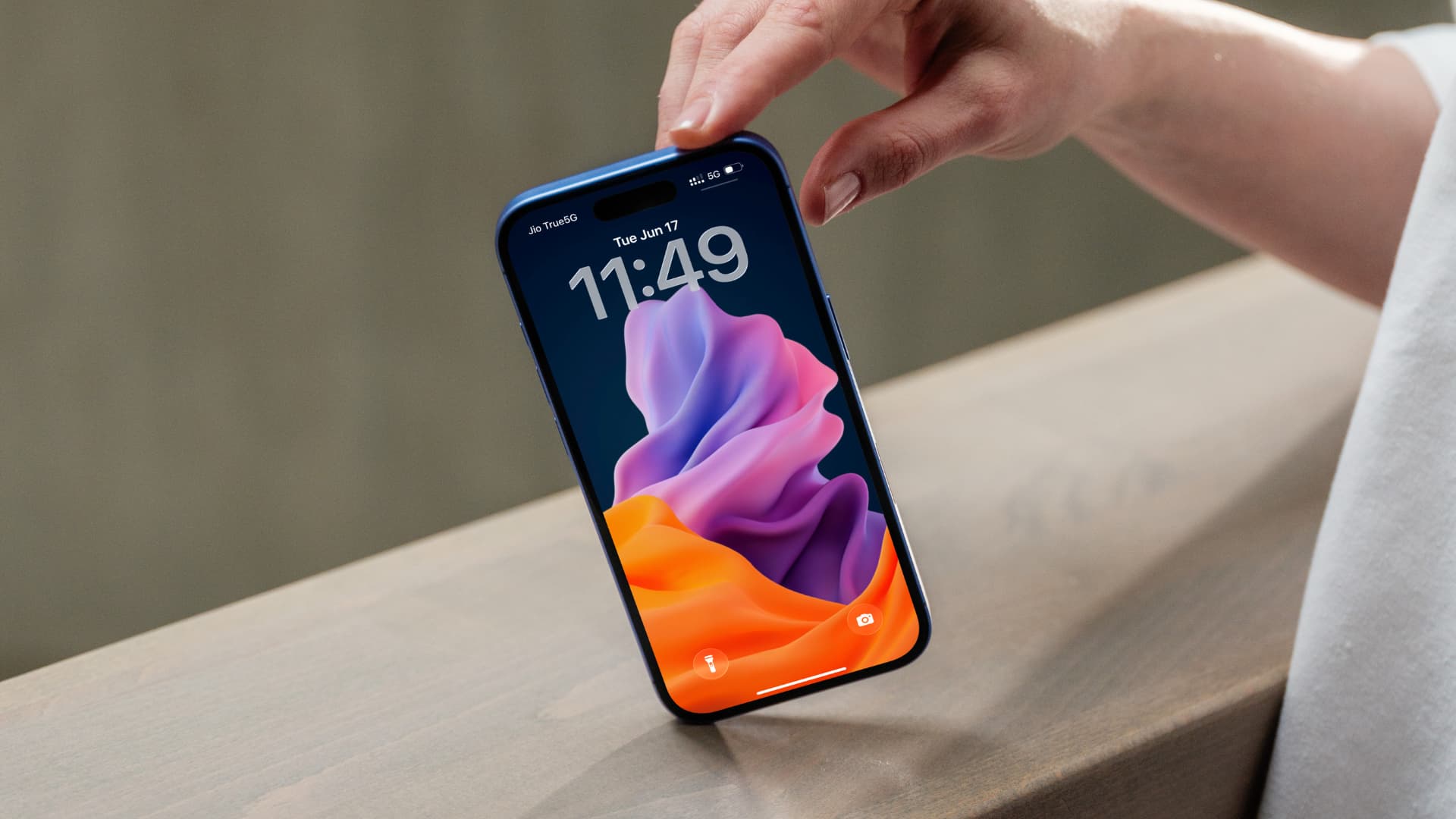
Inspired by the Vision Pro headset, Apple’s iOS 26 software debuts spatial wallpapers for the Lock Screen. The operating system generates a spatial depth map for a 2D picture using advanced monocular computer vision techniques running on-device.
This works even if the image lacks depth data or wasn’t captured as a stereoscopic pair. As a result, you get an immersive Lock Screen wallpaper that animates with a 3D-like parallax effect as you’re tilting the device.
Update your iPhone to iOS 26 (currently in beta, launching this fall) to get this feature. iOS 26 requires at least the iPhone 11 (2019), but spatial wallpapers require the iPhone 12 (2020) or newer. Turn off Low Power Mode as fancy visuals like spatial wallpapers are temporarily suspended in Low Power Mode to conserve battery.
Use 3D spatial wallpapers on the Lock Screen
1) Open an image in the built-in Photos app and tap the share icon, then choose Use as Wallpaper in the menu.
2) Tap the Spatial Scene icon resembling a cube and iOS 26 will work its magic and generate a spatial depth map from the image.

3) Once that’s done, tilt your iPhone in any direction and the wallpaper will move slightly with a 3D-like parallax effect. Use pinching to adjust the crop and then choose Add > Set as Wallpaper Pair to set your new wallpaper. This feature only works on the Lock Screen; you won’t get the 3D effect on the Home Screen wallpaper even if you choose Customize Home Screen and turn off blurring.

To turn off the moving effect, hold the Lock Screen, hit the Customize button, and tap the spatial icon to cross it out. As mentioned, you also disable this effect temporarily by activating Low Power Mode, but keep in mind that Low Power Mode also temporarily suspends features you may need, like Mail fetch.
No spatial option for some images?
If iOS 26 can’t create a spatial data map for a particular picture, you cannot use it as a 3D wallpaper. In that case, pick a different wallpaper and start over. To test the 3D effect without setting the wallpaper, tap the spatial scene icon when viewing an image in the Photos app, as shown below.

Also, check out: How to take spatial photos and videos on iPhone and Vision Pro