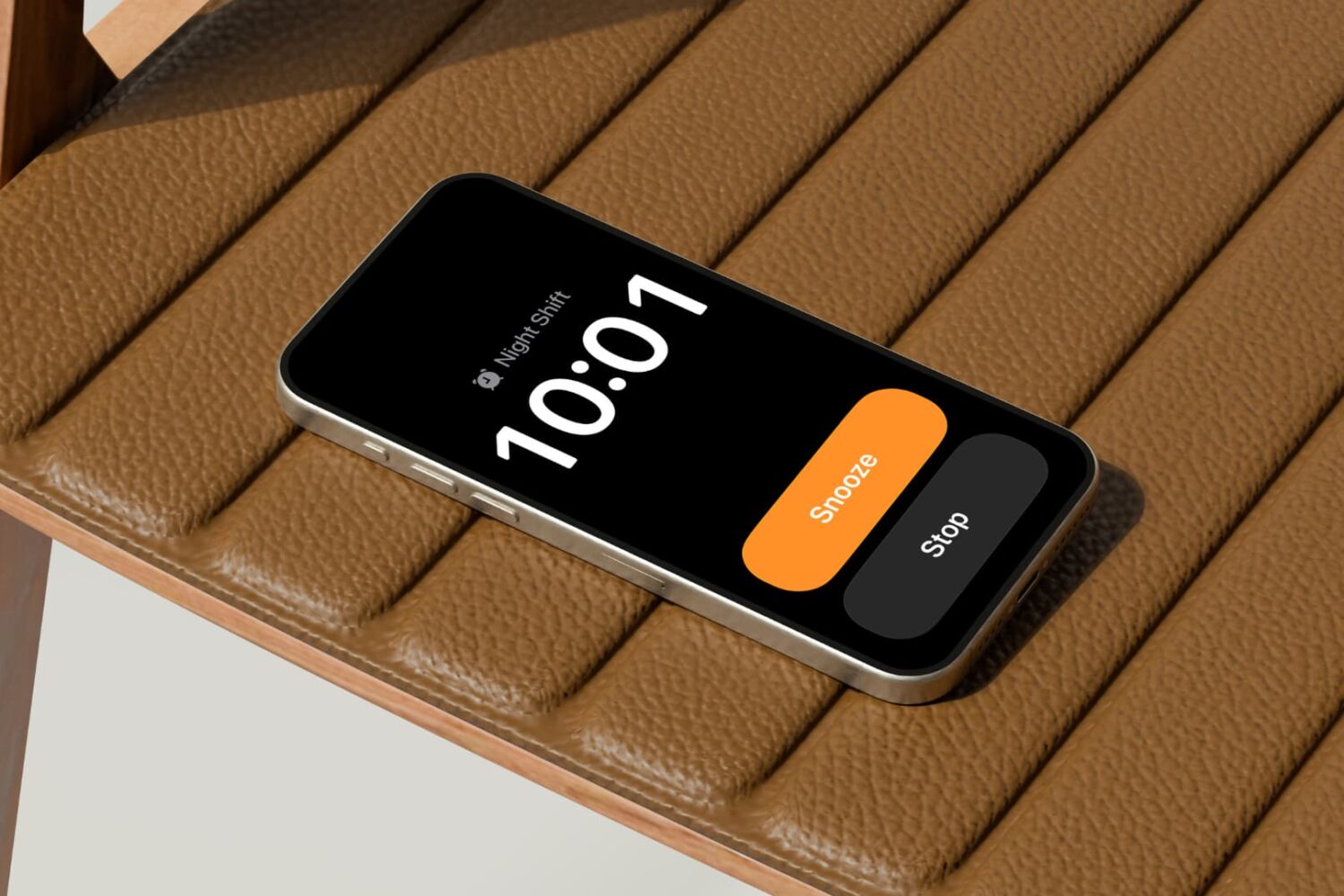
Learn how to set a custom snooze duration for alarms on your Apple devices, other than the default 9-minute snooze that has been in place since the original iPhone.
How to set a custom snooze duration for alarms on iPhone
Learn how to master your Apple devices with our comprehensive tutorials. From iPhone and iPad to Mac, Apple Watch, AirPods, and more, our expert guides will help you unlock the full potential of your Apple products. Discover new features, tips, and tricks each day to enhance your user experience.
Learn how to set a custom snooze duration for alarms on your Apple devices, other than the default 9-minute snooze that has been in place since the original iPhone.
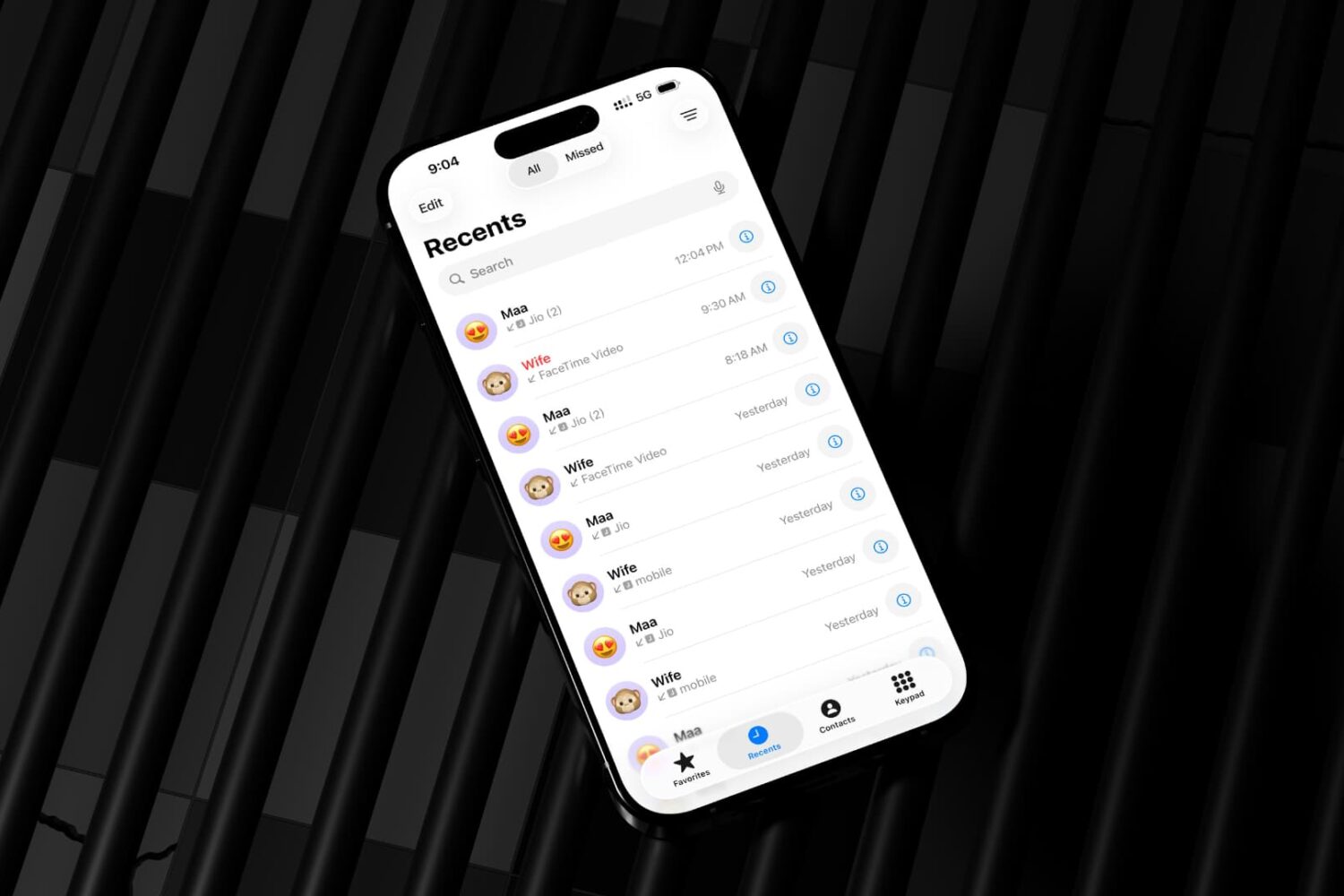
Learn how to revert the classic look for the iPhone's built-in Phone app if you don't like design changes in iOS 26, and switch between the new and old interface.

Learn how to receive timely updates for deliveries, sports scores, and more in your Mac's menu bar via the new Live Activities feature on macOS Tahoe.

Learn how to make the Control Center on the Mac your own by adding, removing, rearranging, and resizing toggles to customize it for your workflow.

Learn how to personalize folders on your Mac with color, emoji, and symbols without downloading any apps or editing folder icons manually.

Learn how to turn on a crossfade option on your HomePod speaker for seamless transitions between Apple Music songs with no gaps or silence in between.

Learn how to make cellular calls on your iPad and Mac, view missed calls, access favorites and more with Apple's Phone app on iPadOS 26 and macOS Tahoe 26.

Learn how to revert Apple's Liquid Glass design changes for the Mac's menu bar in macOS Tahoe bar by replacing the default frosted look with a solid background.

If you’ve ever worked in an office environment before, then you’re likely familiar with something called an Uninterruptible Power Supply (or UPS for short). They’re sometimes even referred to as battery backups, by those who hate big words.

Learn how to increase the size of the digital clock on the Lock Screen of your iPhone or iPad to make it easier to read or for visual impact.
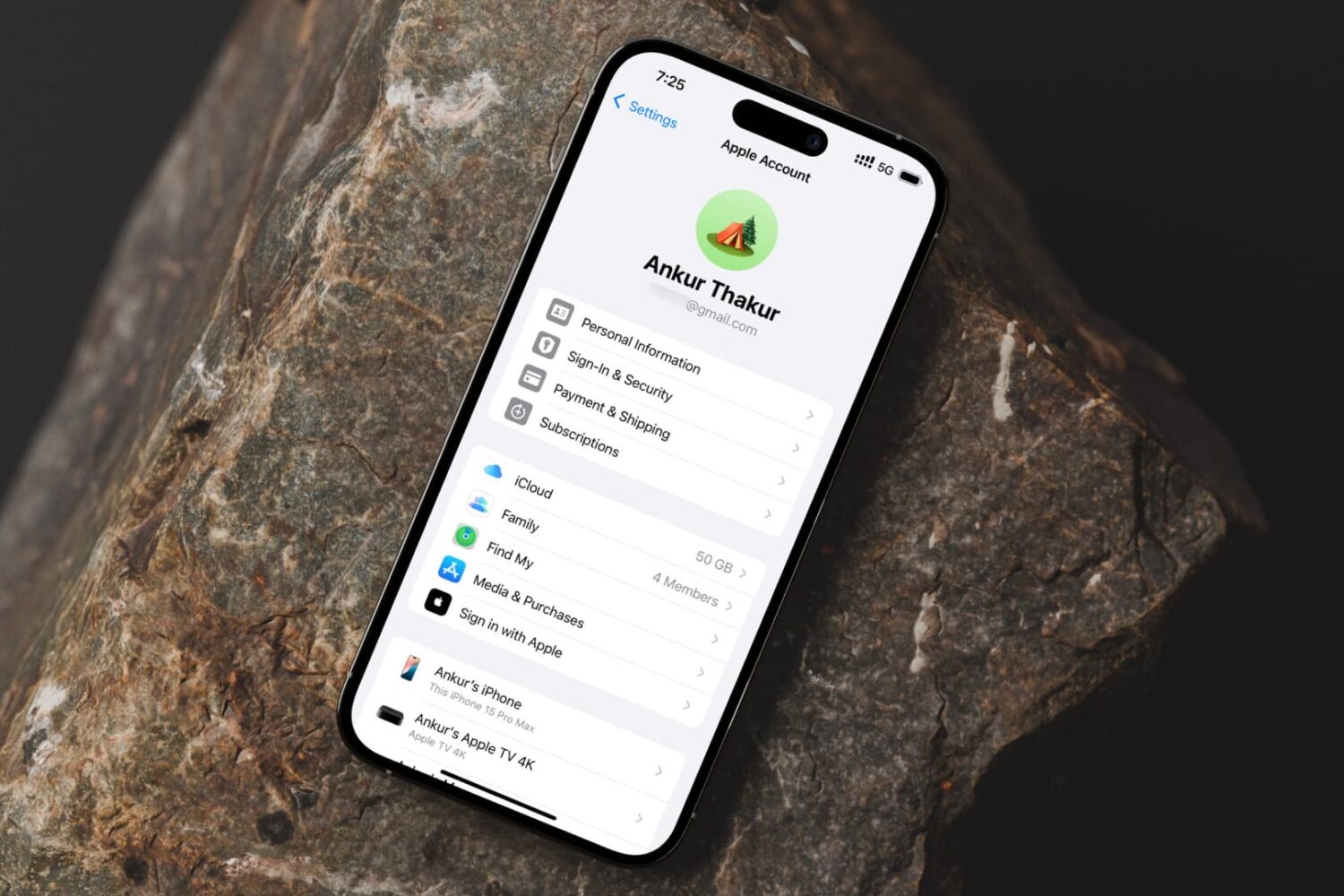
Learn how to remove an email address from your Apple account if you no longer need it for iMessage, FaceTime, App Store, iCloud and other services.
