Learn how to increase the size of the digital clock on the Lock Screen of your iPhone or iPad to make it easier to read or for visual impact.
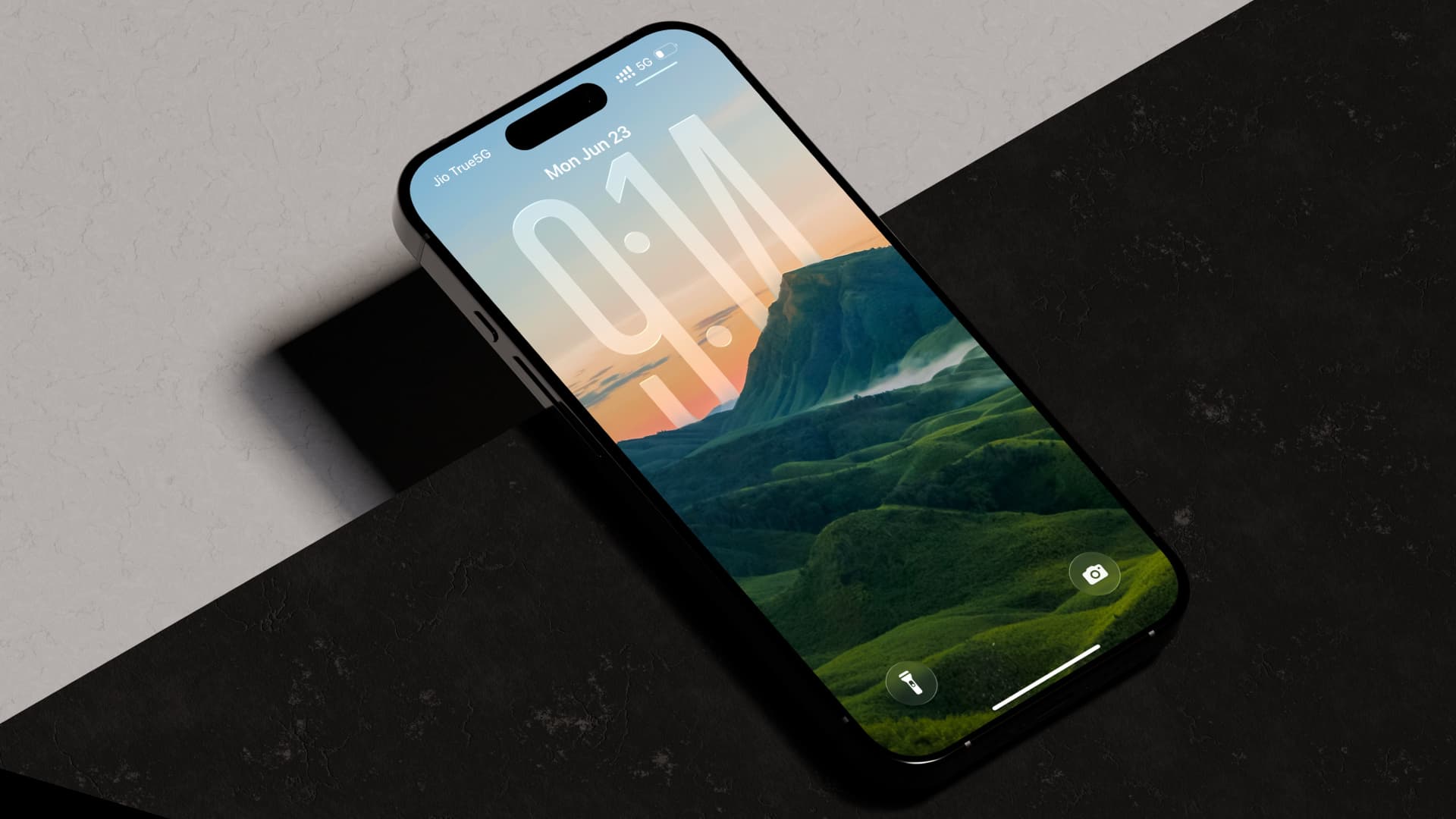
iOS 26 (currently in the beta stage) permits you to make the Lock Screen clock much bigger for some pretty interesting looks.
It even honors the depth effect on the Lock Screen, with parts of the clock hiding behind wallpaper layers. For that, you’ll need to provide an appropriate wallpaper picture (see the top image above) and satisfy other conditions.
Follow along with our instructions right below if you’d like to make the digital clock on your Lock Screen bigger.
Change the Lock Screen clock size
Wake up your iPhone or iPad and unlock it by scanning your face with Face ID or resting your finger on the Touch ID without swiping up to go to the Home Screen. Then, hold anywhere on the Lock Screen until it shrinks a bit and hit Customize.

Now drag the pull tab in the bottom-right corner of the Lock Screen clock to make it bigger. Drag it down as far as it goes to have the clock take up nearly half the interface, or leave it somewhere in between. Then, hit Done to save the changes.

Increasing clock size will push Lock Screen widgets to the bottom, above the flashlight and camera shortcuts. If you cannot drag the clock’s pull tab because of an overlapping widget, drag the widget down to make space and try again.

If you can’t resize the Lock Screen clock
If you’ve followed the steps above and your devices are running iOS 26 and iPadOS 26 but don’t see the pull tab, you’re using a different clock script or font style. To fix it, hit the digital clock when customizing the Lock Screen, then hit the globe icon in the top-left corner of the Font & Color panel and select Arabic, Western script.

After that, select the leftmost font option because other font styles currently don’t support dynamic clock size. You should now see the pull tab; drag it down to increase the size of the Lock Screen clock!

Make the Lock Screen clock smaller
You can’t make the Lock Screen clock any smaller than the default size. But if you’ve made it bigger and don’t like how your Lock Screen looks afterwards, follow the steps above but drag the pull tab up to decrease the clock size for the default appearance.
Keep in mind that tapping album art on the Now Playing control will miniaturize the clock to render cover art across the whole screen.
Also, check out: How to use 3D moving wallpapers on your iPhone Lock Screen in iOS 26